
You use your work email address to sign in to Google. Your inbox stays with your current email provider. You can keep using the same email app and leave your company domain settings as they are.
If IT has already set up a Google Account for you through Google Workspace or Cloud Identity, use that account. If you can already sign in at accounts.google.com with your work email address, you have an account. Before signing up, check with IT that you can create a Google Account with your work address.
Create your Google Account in five steps
The screenshots show desktop sign-up in November 2026. The button labels may vary by device.
Step 1: Open the sign-up form
Open the Google sign-up form without Gmail. If you are already signed in to another Google Account, open the link in a private browser window.
You can also select Create account on the Google sign-in page. If Google asks for an account type, choose For my personal use.
If Google asks you to choose a Workspace plan or set up a company domain, use the sign-up link without Gmail.
Step 2: Enter your personal details
Enter your first name and select Next. Your surname is optional. Google also asks for your date of birth and gender.
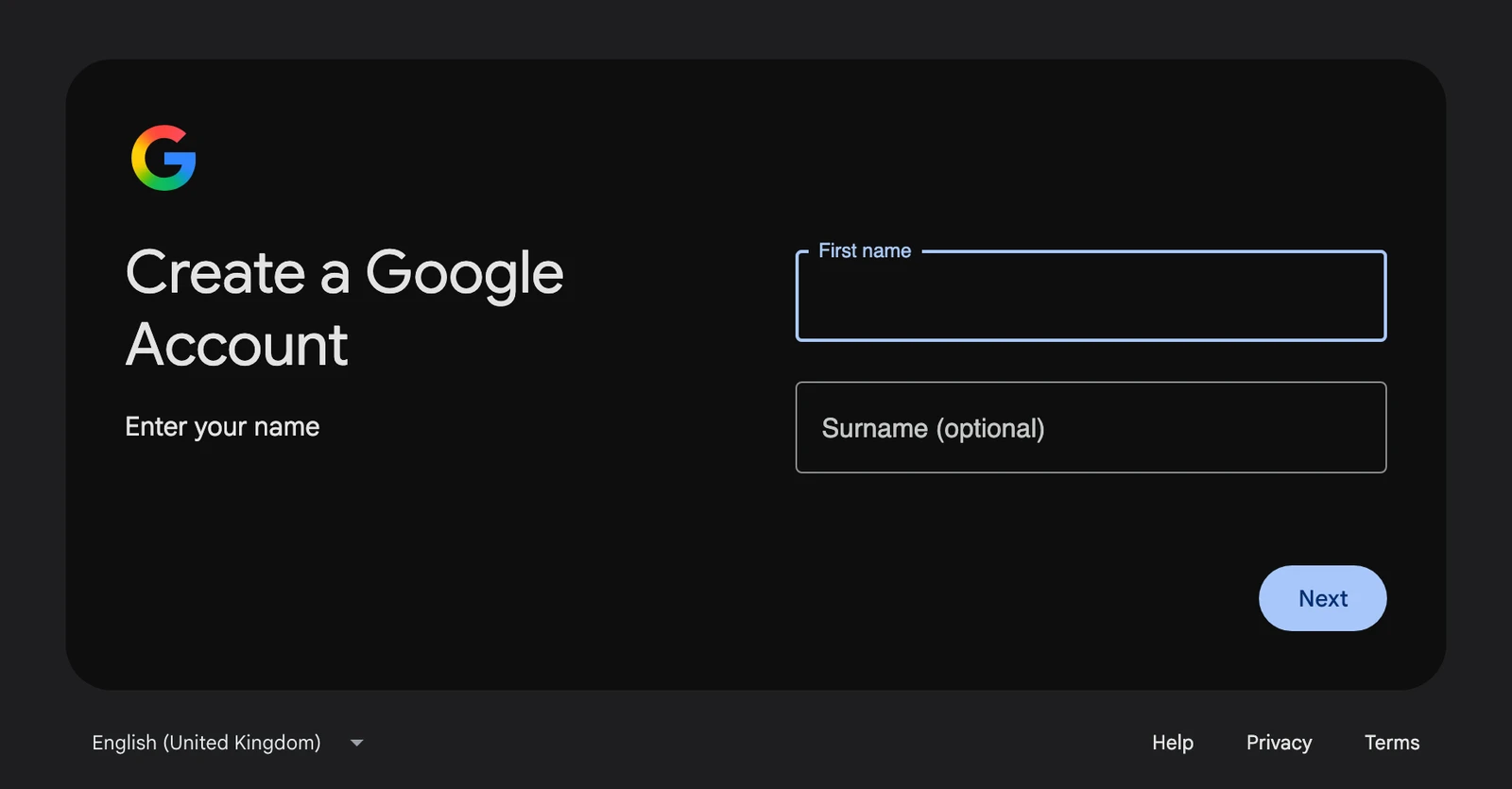
Step 3: Enter your work email address
If Google suggests Gmail addresses, select Use your existing email or phone number. Enter your full work email address and select Next. Google sends a verification code to that address.
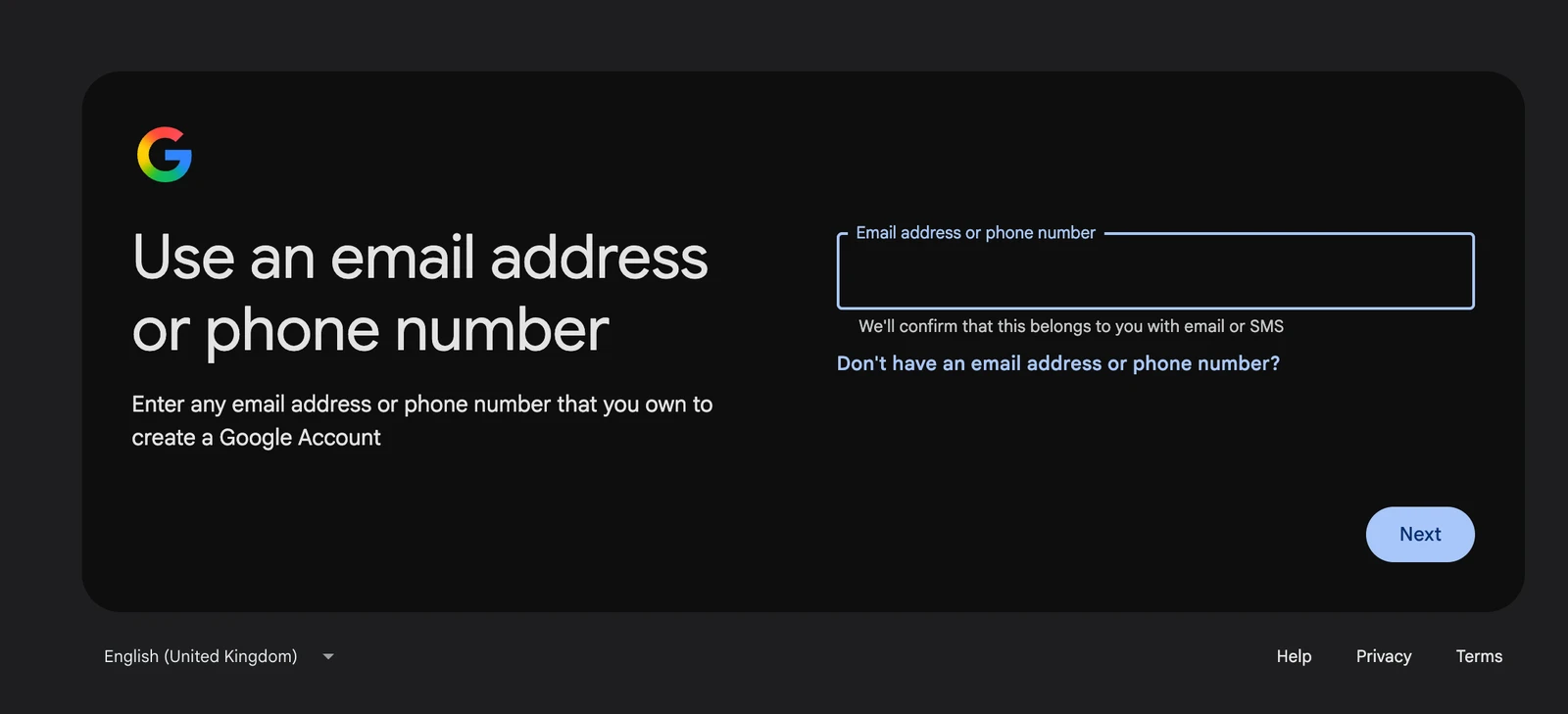
Step 4: Enter the verification code
Open your work inbox in a separate tab or in your email app. Copy the code from Google's email. Return to the sign-up form, enter the code and select Next.
If the email hasn't arrived, check your spam folder and make sure you entered the address correctly. Request a new code if needed.
Step 5: Set a password and finish signing up
Choose a new password for your Google Account. Follow the on-screen instructions to finish signing up. Google may require phone verification in some cases.
You can now sign in to Google with your work email address and your new Google Account password.
Request access to GA4, Tag Manager and Data Studio
Turn on 2-Step Verification first. In your Google Account, open Security & sign-in and choose Turn on 2-Step Verification. If your company has its own rules, follow those.
Send your sign-in address to the person responsible for the property, container or report. A GA4 or Tag Manager administrator grants access. In Data Studio, the report owner or an editor can share the report. Anyone with a public report link can view it without signing in. Google documentation on report sharing
| Tool | Where to grant access | Permission to view |
|---|---|---|
| Google Analytics 4 | Admin → Access Management (account or property) → + → Add users | "Viewer" |
| Google Tag Manager | Admin → User Management in the Container column → + → Add users | Container permission "Read" |
| Data Studio (formerly Looker Studio) | Open the report → Share → Add people | "Can view" |
Tag Manager sends an invitation by email. Open the Invitations card on the Accounts screen and select Accept. In Data Studio, you can open the report link and select Request Access. The request goes to the report owner or, for reports in a Data Studio Pro team workspace, to all managers of that workspace.
Sign in with the Google Account that was granted access. Select your profile picture in the top right to check which account is active.
Who controls a self-registered Google Account?
The person who creates the account controls it. Google calls it an unmanaged personal account when the email address uses a domain the company manages in Google Workspace or Cloud Identity. Once IT verifies the company domain, it can invite the person to transfer the account. The person must accept the transfer. If they leave while the account is still unmanaged, it remains active. The teams responsible for those tools need to revoke the former employee's access.
Reserve admin permissions for accounts your company manages in Cloud Identity or Google Workspace. Google recommends at least two active Tag Manager administrators. Without an administrator, Google automatically deletes the account or container. Google support cannot add users on request. Tag Manager documentation
Sources
Accessed 17 November 2026: Create a Google Account, Sign up for a Google Workspace trial, Use another email to sign in to your Google Account, Add users in Google Analytics, User permissions in Tag Manager, Share reports in Data Studio, managed and unmanaged accounts, transfer unmanaged accounts, verify your account, 2-Step Verification.